Health & Safety
Alexa for Seniors (2026): The Simple Setup Guide + Which Echo to Buy
Updated June 5, 2026. Plain-English technology education for families.
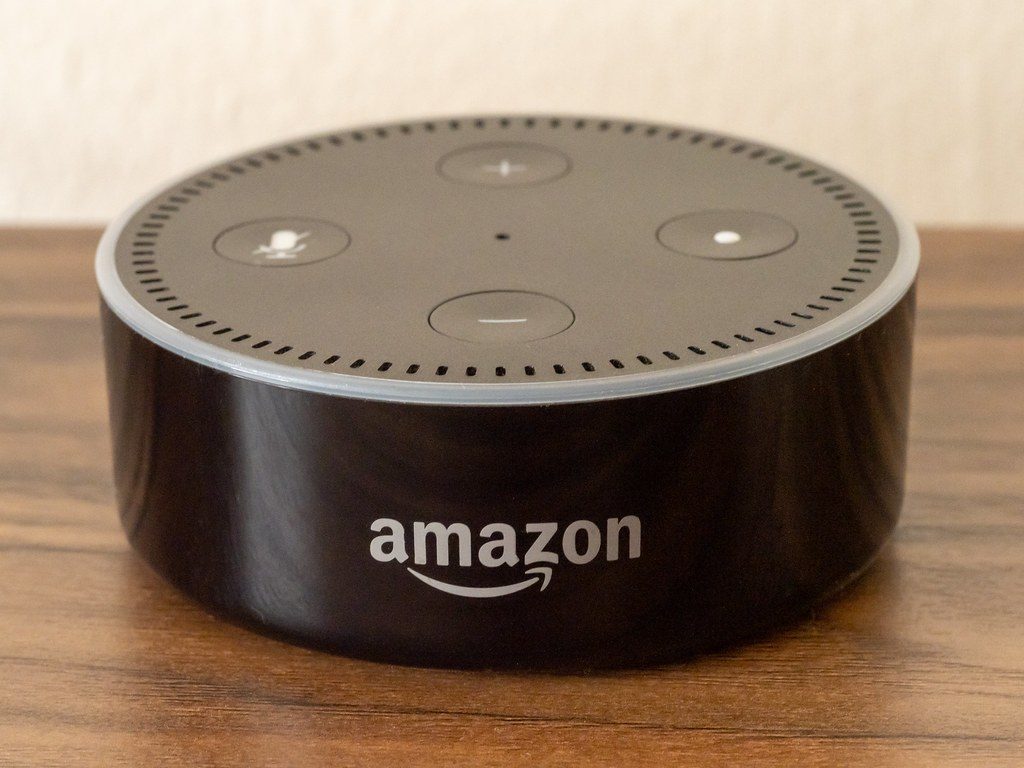
Here is the part the gadget reviews never tell you: the seniors who swear up and down they will never use “one of those talking speaker things” are, very often, the ones who end up using it the most. We have watched it happen again and again. The resistance is real on Monday. By the following Sunday the same person is asking Alexa the weather, the time, the score of the ballgame, and how to spell “Massachusetts” — and has quietly stopped calling you to ask.
That is the whole case for an Amazon Echo in an older parent’s home, and it has almost nothing to do with it being a “smart speaker.” Strip away the marketing and what you actually have is the cheapest thing money can buy that behaves a little like a helpful person standing in the kitchen: it answers questions without judging, it never makes them feel slow, and it asks for nothing — no typing, no tiny buttons, no password, no reading the fine print. For a parent whose eyes, hands, or short-term memory aren’t what they were, that combination is quietly enormous.
So let’s do this properly. This is the setup guide we wish someone had handed us — written for the adult child who will actually do the setting up, with the parent’s dignity kept squarely in mind. Get it right and you hand your mom or dad something that just works, the first time and every time.
Why Alexa, specifically, for an older adult
A smartphone asks an older person to find a tiny icon, tap precisely, remember a password, and read small text. An Echo asks them to talk. That single difference is why voice tends to land with seniors when screens have frustrated them for years. There is nothing to drop, nothing to charge nightly, nothing to “log into.”
From your side of it, the appeal is just as practical: hands-free contact, gentle medication nudges, and a way for your parent to get answers and entertainment that doesn’t route every small question through your phone. From their side — and this is the part worth protecting — it gives back a measure of independence. Asking a speaker for the weather feels nothing like asking your daughter for the fourth time today. One costs you dignity; the other costs you a sentence into thin air.
The setup, step by step (you do this part)
The golden rule: your parent should never see a setup screen. You do the whole thing, test it, and hand them a finished device that already knows their name and their routine. Budget twenty quiet minutes.
- Plug it in and open the Alexa app on your phone. Download the free Amazon Alexa app, sign in (use an Amazon account you control, or set one up for your parent that you can manage), and let the app find the new device.
- Connect it to their Wi-Fi. The app walks you through it. This is the one technical step, and you are doing it, not them.
- Tell it who and where they are. Set the device location to their address so weather, news, and “what time is it” are correct, and set their name so it greets them properly.
- Turn OFF the things that cause trouble. In settings, switch off voice purchasing (so no one accidentally orders anything) and turn on a simple, predictable experience. We list exactly what to disable below.
- Build the routines that matter. This is where an Echo stops being a novelty and becomes useful — medication reminders, a morning briefing, evening check-ins. Details in the next section.
- Set up calling and Drop In. Link your phone (and a sibling’s) so family can call the Echo hands-free, and so you can “Drop In” to check on them by voice when a call goes unanswered. Talk to your parent about Drop In first — more on that below.
- Teach five phrases and leave a card. Don’t explain the whole system. Print five commands in large type, tape it near the device, and walk through them once: the weather, the time, a reminder, calling you, and playing their music or radio. Five wins build confidence faster than fifty features.
The routines that actually earn their keep
Anyone can ask a speaker for the weather. The reason to put one in a parent’s home is the routines you can set silently in the background:
- Medication reminders. Schedule “It’s time to take your evening pills” to play at the same time daily. It won’t replace a proper pill dispenser for the doses that truly matter, but as a gentle, repeating nudge it is excellent — and it never sighs.
- A “Good morning” briefing. One routine can greet them by name, give the day and date (genuinely grounding for someone with early memory changes), the weather, and a reminder of anything on the calendar.
- Hands-free family calling. “Alexa, call my daughter” works from across the room — no phone to find, no screen to unlock. For a parent who has fallen or simply can’t get to the phone, that matters.
- Reminders that stick. Appointments, “the cleaner comes Thursday,” “call your sister back” — spoken at the right moment instead of written on a note that gets lost.
Which Echo should you actually buy?
Amazon sells more versions than anyone needs, so here is the short version. For most parents, the right answer is a screen model — the picture makes video calls possible and makes reminders something they can see as well as hear.
| Device | Screen | Best for |
|---|---|---|
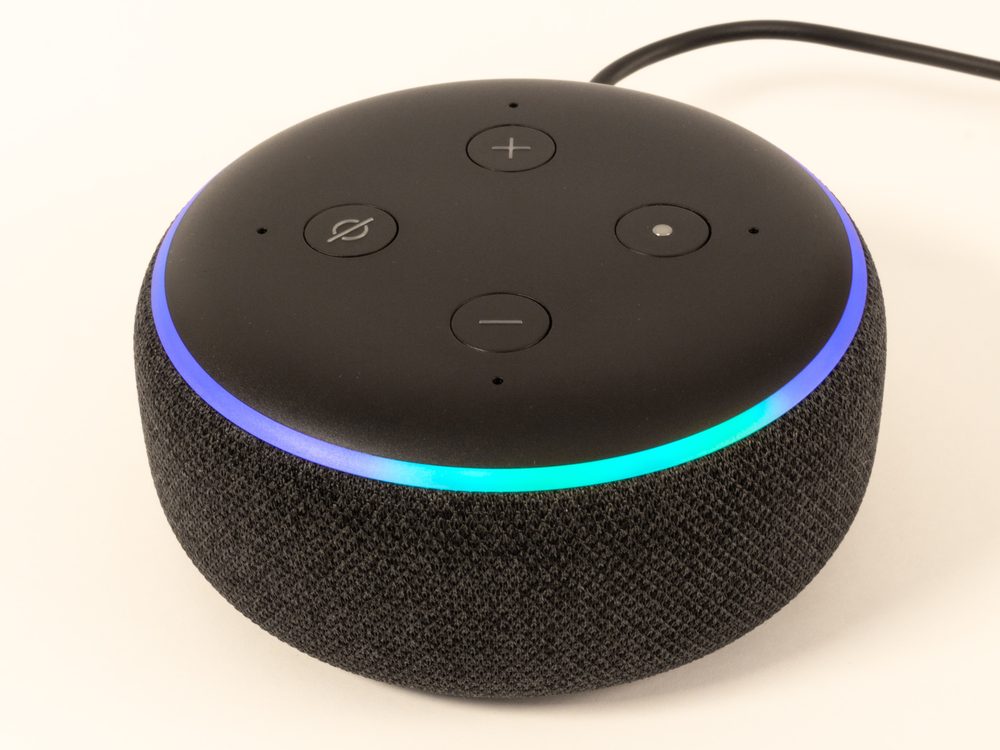
| Echo Dot | None | Cheapest start; voice-only reminders, radio, questions. A great low-stakes first try. |
| Echo Show 5 | Small | Bedside or kitchen counter; a clock, video calls, and reminders in a tiny footprint. |
| Echo Show 8 | Medium | The sweet spot for most parents — big enough to see, great for video calls with the grandkids. |
| Echo Show 10 | Large, motorized | Low vision or lots of video calls; the screen turns to follow them around the room. |
Start here for most families — the Echo Dot. If you want the lowest-risk way to find out whether your parent takes to it, a Dot costs little, does the voice essentials, and won’t feel like a big commitment if it turns out they hate it (they usually don’t).
Check Echo Dot price on Amazon →
The all-rounder — Echo Show 8. If you only buy one device and want it to do everything, this is it. The screen is large enough for aging eyes, video calls to the family are genuinely easy, and reminders appear on-screen as well as out loud. It is the same model we recommend in our tech gifts guide, and for good reason.
Check Echo Show 8 price on Amazon →
Bedside — Echo Show 5. A smaller screen that earns its place on a nightstand as a clock, an alarm, and a quick way to call family before they’re even out of bed.
Check Echo Show 5 price on Amazon →
For low vision or lots of video calls — Echo Show 10. The motorized screen rotates to keep them in frame on a call and keeps the display facing them as they move around the kitchen. It costs more; for the right parent it is worth every dollar.
Check Echo Show 10 price on Amazon →
One cheap add-on that punches far above its price
Pair the Echo with a $15 smart plug and a lamp, and suddenly “Alexa, turn on the living room light” replaces a dark walk across a room — one of the most ordinary ways older adults fall. Plug the bedroom lamp into one and your parent can light the way to the bathroom at 2 a.m. without fumbling for a switch. It is the highest-value $15 you will spend on this whole project.
See Alexa smart plugs on Amazon →
What to switch off — and the privacy conversation
A few settings will save you headaches. Turn off voice purchasing so nothing gets ordered by accident. Consider disabling or simplifying the shopping list features if they cause confusion, and keep the device’s “skills” to a short, useful handful rather than letting it sprawl.
Then have the honest conversation about Drop In, the feature that lets you connect to the Echo like an instant intercom, sometimes without them pressing anything. Used with consent, it is a genuine comfort — a way to say good morning or check that a quiet day is just quiet. Used in secret, it is surveillance, and it can poison trust the moment they discover it. Tell your parent it exists, agree together on when you’ll use it, and let them turn it off. Independence you respect is independence they keep. (Yes, the Echo is always listening for its wake word; no, it is not recording your living room. If your parent worries about it, the mic has a physical off button — show them where it is. Being able to silence it themselves is exactly the kind of control that makes them comfortable keeping it.)
Frequently asked questions
Is Alexa good for elderly parents who aren’t “techy”?
Yes — that is precisely who it suits best. Because you talk to it instead of tapping a screen or remembering a password, an Echo sidesteps the things that frustrate older adults about phones and tablets. The key is that you do the setup and hand over a finished device, so they only ever experience the easy part.
Which Amazon Echo is best for a senior?
For most parents, the Echo Show 8 — the screen is large enough to read, video calls with family are simple, and reminders appear visually as well as out loud. If you just want the cheapest way to test whether they’ll like it, start with an Echo Dot. For low vision or frequent video calls, the motorized Echo Show 10 is worth the extra cost.
Can Alexa remind my parent to take their medication?
Yes. You can schedule a spoken reminder at the same time each day. It’s an excellent gentle nudge, though for critical medications we’d still pair it with a dedicated automatic pill dispenser rather than relying on a voice reminder alone.
Can I call my parent’s Echo, or check on them?
Yes. Once you link accounts in the Alexa app, you can place a hands-free call to their device, and the “Drop In” feature can connect like an intercom. We strongly recommend setting Drop In up with your parent’s knowledge and agreement rather than secretly.
Is Alexa always listening to everything we say?
The device listens for its wake word (“Alexa”) and only sends audio to Amazon after it hears it. It is not streaming your living room continuously. Every Echo also has a physical microphone-off button, and showing your parent how to use it usually settles the concern.
Does Alexa need a monthly subscription?
No. The core features — questions, reminders, routines, calling, weather, radio — are free once you own the device. Some music and content services have their own subscriptions, but nothing you need for the senior-friendly basics here costs a monthly fee.
Read next
- Best Automatic Pill Dispensers for Elderly Parents
- AI Companions for Elderly Parents: An Honest Guide
- GPS Trackers for Elderly Parents & Dementia Wandering
Disclosure: TechForYears participates in the Amazon Associates Program and may earn commissions from qualifying purchases made through links on this page, at no additional cost to you. Prices and availability are accurate as of publication and may change. Hero photo by ajay_suresh, licensed under CC BY 2.0.